 Complete VR Studio
Home › Guides › Tilted or misaligned image
AR glasses image tilted or misaligned: how to fix it
A common complaint with AR/XR display glasses is that the virtual screen looks slightly rotated, one eye's image sits higher than the other, or you see a faint double image. This can cause eye strain even when you can't quite tell what's wrong. Here's how to diagnose and fix it.
Step 1: Diagnose which kind of misalignment you have
Open a window with straight horizontal lines (a spreadsheet works well). Then:
- Close your left eye, then your right. If the image jumps up or down, you have vertical misalignment.
- If the lines look rotated in one eye only, that eye has a roll offset.
- If both eyes see the same rotation, the whole screen is tilted, which is often fit-related.
- If one eye's image looks larger, there's a size mismatch.
Step 2: Fix the physical causes
- Check that the glasses sit level. Look in a mirror; one arm resting higher on your ear tilts the whole picture.
- Try different nose pads and make sure the frame isn't bent.
- If your glasses have head tracking or a "follow" mode, recenter it. A drifting gyro can look like a tilted screen.
Step 3: Check Windows
- In Settings › System › Display, confirm the glasses' orientation is Landscape.
- Use the native resolution so scaling doesn't add blur that hides the real problem.
Step 4: Correct each eye in software
If both eyes still don't match after fixing the fit, the remaining offset comes from small optical or manufacturing differences. Windows can't correct one eye alone, so you need per-eye tools.
How Complete VR Studio helps
Complete VR Studio is a Windows PC app for per-eye tuning of XR glasses:
- Per-eye perspective and tilt correct vertical offset, rotation (roll), pitch and yaw separately for the left and right eye.
- Per-eye stretch and curvature fix size or shape differences between the eyes.
- Gyro controls for head-tracked viewing.
Use a test pattern, adjust one eye at a time in small steps, and rest your eyes between changes. When the image fuses into one clean picture with no doubling, you're done. The RayNeo blurry edges guide walks through the stereo calibration screens in detail.
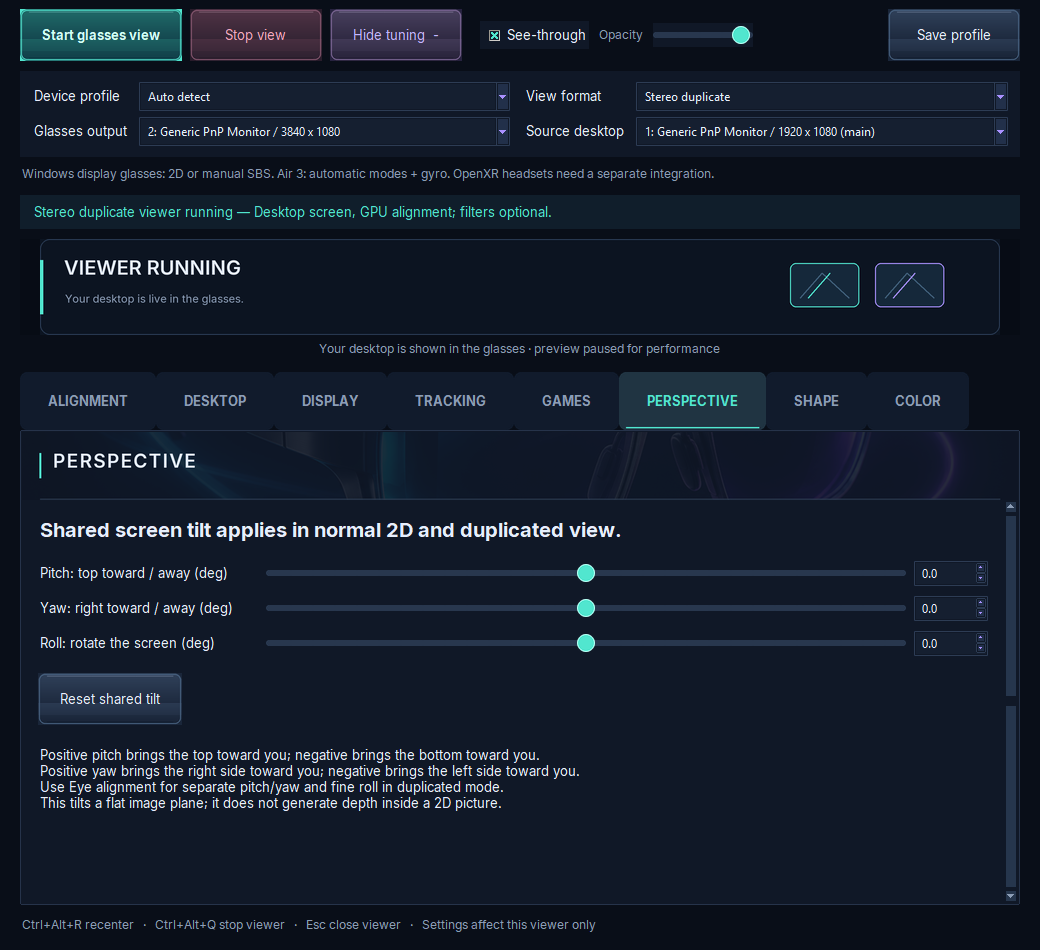
RayNeo Air 3 is fully tested. XREAL/Nreal, VITURE and Rokid have manual profiles that aren't validated yet.
Trial, price and how to get it
Complete VR Studio is a Windows 10 (version 19041 or newer) and Windows 11 x64 app, currently at version 1.0.0-preview.10. Premium features are included in a 7-day trial from install, and basic viewing keeps working until day 90. Activation costs about $5 in Bitcoin during the trial, or about $25 after it, paid in Bitcoin only. It's built security-first. See trial & pricing and compatibility for details.
FAQ
Why is the image on my AR glasses tilted?
Usually because the glasses sit unevenly on your face or a head-tracking mode needs recentering. If only one eye is rotated, it's a per-eye optical offset.
Why do I see double on my AR glasses?
The left and right images are slightly offset vertically or rotated, so your eyes can't fully merge them.
Can I correct one eye only?
Not in Windows. Per-eye tools like Complete VR Studio can adjust each eye separately.